Every converted episode has a full transcript with speaker names and timestamps. Open the episode's Results Page, click the Full Transcription card, and use Transcript to download it as TXT, PDF or DOCX, or SRT to download a subtitle file.
Steps
- On your Dashboard, open the episode to go to its Results Page.
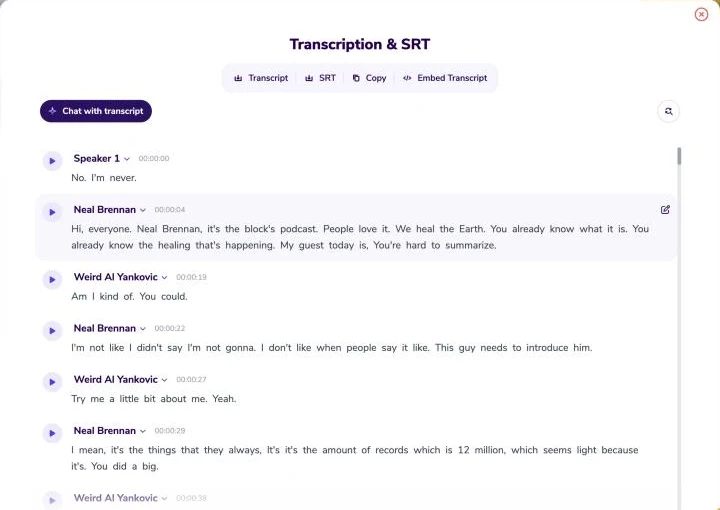
- In the Written content tab, click the Full Transcription card. The Transcription & SRT window opens.
- Choose how to take the transcript:
- Transcript: opens a "Download as" menu with TXT, PDF and DOCX.
- SRT: downloads a subtitle file with timings, for captions in YouTube or a video editor.
- Copy: copies the whole transcript to your clipboard.
- Embed Transcript: gives you a code snippet to put a searchable transcript on your WordPress site or any HTML page.
Good to know
- Fix it before you download. Changes you make in the window (speaker names, edited text, search and replace) are saved and included in the TXT, PDF and DOCX downloads. See Fix speaker names and spelling.
- Each block in the transcript has the speaker's name and the time it starts, and the play button lets you listen to that part.
- Copy adds the line "Automatically Transcribed With Podsqueeze" at the top of the copied text. The downloaded files don't include it.
- Download everything at once: Download All on the Results Page downloads the transcript, the SRT and the other written results as one ZIP file. See Download all content.
- Chat with transcript in the same window lets you ask questions about the episode. It is available on Pro and above.
- Transcript only: Podsqueeze always creates the full set of results for an episode; there is no transcript-only conversion. The minutes used are the same.
Troubleshooting
- The SRT button is missing. It only shows once the subtitle file is ready. Wait for processing to finish and open the window again.
- The transcript is in the wrong language. The episode was converted with the wrong Episode Language. See Supported languages.