Click Download All on the episode's Results Page and choose a format. You get one ZIP file with a separate file for each written result.
Steps
- Open the episode's Results Page and stay on the Written content tab.
- Click Download All.
- Choose a format: TXT, PDF or DOCX.
- Your browser downloads a ZIP file named after the episode (for example,
episode_name_files.zip).
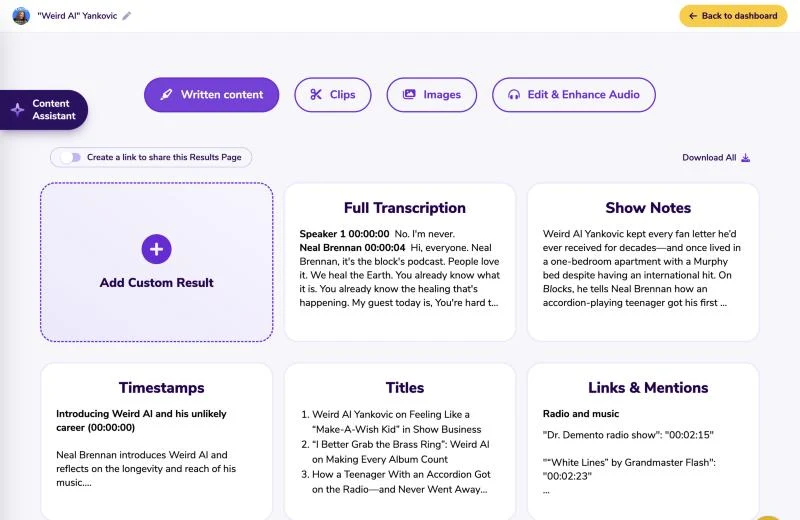
What is in the ZIP
One file per result, in the format you chose:
- Full transcript
- SRT subtitles (as text)
- Show notes
- Timestamps
- Titles
- Links & mentions
- Keywords
- Newsletter
- LinkedIn & Facebook posts
- Tweets
- Quotes
Results that are still empty are skipped. Formatting such as bold and headings is removed, so every file is plain text inside.
Good to know
- Not included: the blog post, the bullet points and your custom results. Open those cards and copy them.
- Clips, images and audio are downloaded from their own tabs: Clips, Images and Edit & Enhance Audio.
- For the transcript alone, or a proper SRT file, use the Transcript and SRT buttons in the Full Transcription card. See Download a transcript.
- To share the results without sending files, use a public link. See Share a results page.
Troubleshooting
- Nothing downloads. Your browser may be blocking downloads from the site. Allow downloads for podsqueeze.com and click Download All again.
- Some files are missing. The results may still be generating. Wait until every card has content and download again.