A custom result is a piece of content you define yourself, such as a LinkedIn post in your style or a news lead. Any plan can generate one for an episode; on Pro and above you can save it so it runs automatically on every new episode in the same folder.
Steps
- Open the episode's Results Page and stay on the Written content tab.
- Click the Add Custom Result card.
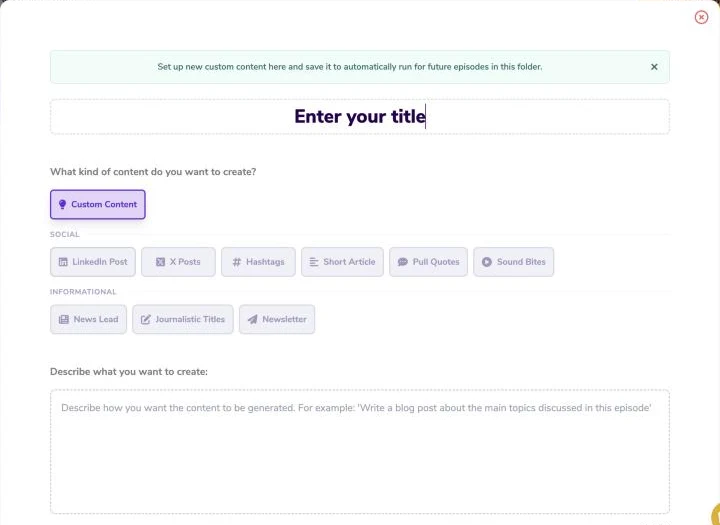
- Type a name in Enter your title. A title is required.
- Pick a type:
- Custom Content: write your own instructions from scratch.
- SOCIAL: LinkedIn Post, X Posts, Hashtags, Short Article, Pull Quotes, Sound Bites.
- INFORMATIONAL: News Lead, Journalistic Titles, Newsletter.
- In Describe what you want to create, explain what you want (up to 5,000 characters). For some types you can also Paste an example of a post you like, which is used as a reference for tone and structure.
- Click Apply. The text appears under Generated content.
- If you want to change it, click Back to Prompt, edit your instructions and apply again.
- Click Save for Future Episodes to keep it. From then on it runs automatically for every new episode you add to this folder.
Limits
- Generating a custom result for one episode works on every plan.
- Save for Future Episodes is available on Pro and above. On Free and Starter the button shows a lock and the message "This feature is only available for Pro plans or above." See /pricing/.
- Instructions and examples can each be up to 5,000 characters.
- A saved custom result belongs to the folder (the show). Episodes in other folders don't get it.
Good to know
- Be specific in your instructions: length, tone, who it is for, what to leave out. "Three LinkedIn posts of under 120 words, first person, from the host, no hashtags" works better than "a LinkedIn post".
- To change the writing style of every result for a show, not only one custom result, use Personalize AI on the folder. See Folders and Personalize AI.
Troubleshooting
- "Give this content a title before adding it to the results page". Fill in Enter your title and try again.
- Apply is greyed out. With Custom Content, the description box can't be empty.