The Opus Clip alternative built for podcasts
Same idea, different focus. Podsqueeze turns a podcast episode into captioned clips and also writes the show notes, chapters and posts, with an assistant you can ask to change any clip.
Used by podcasters, networks and media around the world












Switching takes minutes
Bring the episode you'd have clipped in Opus
Nothing to migrate. Upload and compare the results yourself.
Upload the same episode
Video, audio or a YouTube link.
Compare the clips
Moments, framing and captions, against what you had.

Where crunk really started
Keep the show notes too
Titles, chapters and posts come from the same upload.
AI agent
One assistant for finding clips and fixing them
Ask for moments from the episode, then ask for changes to the clip in front of you. Both happen in the same chat.
It finds clips
Ask for the moments you want
“Two stories from the guest, under 45 seconds.” It reads the full episode and returns clips with titles and hooks.
It edits them
Then change them in plain words
Captions, a lower third, music or the cut itself, each change listed with an undo.
Reads the whole episode
The full transcript, not just the start.
Shows its changes
Nothing changes without a note.
15 languages
Ask the way you speak.
Editor
When you'd rather do it yourself
Transcript, timeline and every setting are in the same editor, next to the assistant.
Swipe to see the whole editor →
1Transcript editing
Delete words, the video follows.
2A timeline
Captions, lower thirds, music and logos on tracks.
3Layouts
Save your look for every clip.
4Three formats
9:16, 1:1 and 16:9.
Captions
Animated captions, balanced line by line
Six caption styles, lines split by meaning, and corrections made once in the transcript.
- Six caption styles
- Your fonts and colours
- Fix a word, captions follow
Caption presets
Framing for conversations
Built around two people talking
Follow whoever is speaking, or put host and guest on screen together.
Speaker detection by voice and lip movement
Podsqueeze matches each voice to a face by watching who moves their lips, so the vertical frame lands on the person speaking even when two faces are on screen.
Split screen for host and guest
Put both people on screen, each face framed in its own half, with the captions between them.
Text editing
Edit the clip like a document
Delete words in the transcript and they're cut from the video; extend a clip by a sentence when an idea needs it.
- Cut by deleting words
- Fix misheard names
- One sentence earlier or later
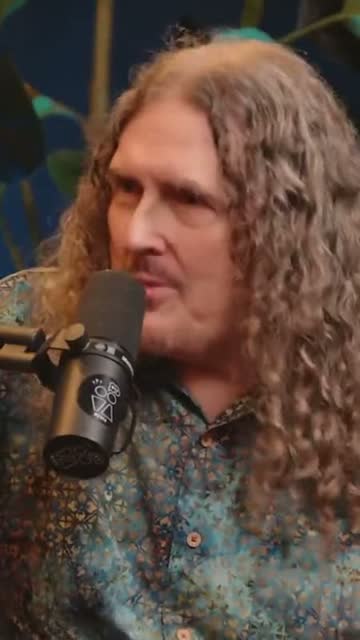
“Weird Al” Yankovic 12:44
✦ Cut the “um”sSo, um, I talked to him on the phone and I said, listen, I'd like to do a parody of your song. You know, and he said, oh, is it gonna be a song about food? This was the first time Nirvana played Saturday Night Live.
Audio-only shows
Audio podcasts get clips too
Audio-only episodes become audiograms in the same app, with your cover art, a waveform that moves with the voice and animated captions.
- In the same editor as video clips
- Seven waveform styles
- Vertical, square and wide

The one email that grew our show
The Long Table · Ep. 18
We
The one email that grew our show
The Long Table · Ep. 18
We
Publishing
Schedule Shorts, download the rest
Schedule clips to YouTube Shorts from Podsqueeze, or download MP4s for TikTok, Reels and LinkedIn.
- YouTube Shorts scheduling
- MP4s for every platform
- A title for each clip
YouTube Shorts
Off the Record · connected
Mon
Tue
Wed
Thu
Fri
Beyond clips
The rest of the episode, written for you
Show notes
A summary and key points for your podcast host.
Chapters
Timestamps for YouTube and podcast apps.
Social posts
Posts for LinkedIn, X and Instagram from the same episode.
Background music
Royalty-free tracks under the voices.
Podsqueeze vs Opus Clip
How they compare, feature by feature
| Feature | Podsqueeze | Opus Clip |
|---|---|---|
| AI clips with animated captions | ||
| Split screen for two speakers | ||
| Speaker detection | Voice + lips | Voice + motion |
| Chat assistant that edits an existing clip | Prompt to clip | |
| Audiograms in the same app | Separate tools | |
| Show notes and chapters from the upload | ||
| Free plan |
Loved by the people who make the shows
Podsqueeze or Opus Clip?
Opus Clip and Podsqueeze both turn long videos into short, captioned clips with AI. The difference is focus. Opus Clip is a general video clipper with many layouts and publishing options. Podsqueeze is built for podcasts: it clips the episode and also writes what a podcast needs around it, like show notes, chapters and social posts, and it handles audio-only episodes in the same app.
What's different in Podsqueeze
- An assistant that edits the clip you're on. Ask for a shorter cut, different captions or a name on screen, and it makes the change.
- Speaker detection by voice and lips. The frame follows the person whose lips move with the voice.
- Show notes and chapters from the same upload. No second tool for the text.
- Audiograms for audio-only episodes, in the same editor.
When Opus Clip may be the better fit
If you clip gaming streams, videos with three or four people on screen, or you need an API and posting to many networks from one place, Opus Clip covers those cases well. For podcasts, especially interviews and audio-first shows, Podsqueeze covers more of the work.
How we compared
We compared features using opus.pro's pricing and help pages in November 2026. Features change often, so check both tools with your own episode. For a wider comparison that includes Headliner and other tools, read our guide to Opus Clip alternatives for podcasters.
Try it with your own episode
The fastest way to compare is to upload an episode you've already clipped. Podsqueeze has a free plan, no credit card needed.
FAQ
Switching from Opus Clip, answered
Can't find what you're looking for? Our team answers within a day.
Is Podsqueeze a good Opus Clip alternative?
If you make a podcast, yes. Both make captioned vertical clips; Podsqueeze adds show notes, chapters and posts from the same upload, audiograms for audio-only episodes and an assistant that edits a clip when you ask.
What does Opus Clip do better?
Opus Clip has more layouts for three or four people, more publishing destinations on its Pro plan and an API. If you mostly clip gaming streams or videos with many people, it may suit you better.
How does Opus Clip pricing work?
According to opus.pro (checked November 2026), there is a free plan, Starter at $15 a month and Pro at $29 a month, and processing uses one credit per minute of video. See our pricing page for Podsqueeze's plans.
Can I use the same episode I clipped in Opus Clip?
Yes. Upload the same file or paste the YouTube link, and compare the clips yourself.
Do I lose anything by switching?
Your Opus Clip projects stay in Opus Clip. Podsqueeze starts from the episode, so nothing needs to be moved.


Try your next episode in Podsqueeze
Upload it, compare the clips, and keep the show notes too.
Free plan · No credit card · Audio or video