AI reframe that follows whoever is talking
Wide podcast and interview shots don't fit a phone. Podsqueeze listens to the voices, watches the lips and moves a vertical frame to the person speaking, calmly, shot after shot.
Used by podcasters, networks and media around the world












How auto reframe works
From a wide shot to a vertical clip, on its own
No keyframes, no dragging a crop box through the video.
Upload a wide video
A podcast, interview or panel filmed in 16:9.
The AI finds the speakers
It matches each voice to a face by watching the lips.
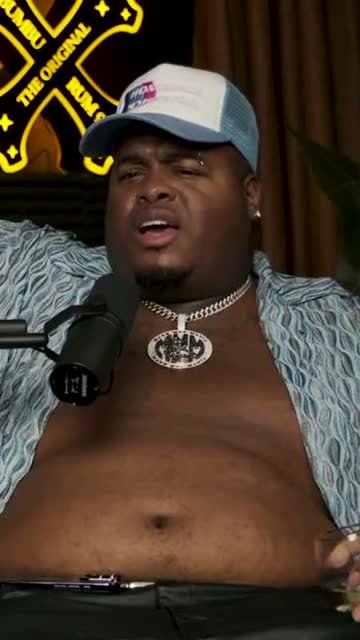
Where crunk really started
Get clips framed for phones
The frame moves to whoever talks, in 9:16 or 1:1.
AI agent
Ask for clips, get them already reframed
Ask for moments from the episode, or ask for a change to the framing. The agent does both and shows you each change.
It finds the clips
Clips that arrive framed for phones
“The best answer from the guest, under a minute.” The clip comes back vertical, with the guest in frame.
It adjusts them
Change the framing in a sentence
Ask for split screen, a hard cut or bigger captions. The change is listed and one click undoes it.
Sees who is talking
Voice and lips together.
Never final
Every reframe can be changed.
Any spoken language
Framing uses voice and lips, not words.
Manual control
Put the frame exactly where you want it
If the AI picks the wrong face, drag the speaker marker onto the right one. Choose smooth pans or hard cuts, or fit everyone in the frame.
Swipe to see the whole editor →
1Speaker markers
Drag a marker onto a face to fix it.
2Pan or cut
Calm moves or clean cuts between speakers.
3Fit all
Keep every person in view when you need to.
4Any aspect ratio
9:16, 1:1 or the original 16:9.
Captions
Captions that sit under the framed face
Each reframed clip gets animated, word-by-word captions, placed below the speaker so they never cover a face.
- Six caption styles
- Your colours and font
- Drag them anywhere
Caption presets
Reframing, in action
One wide shot, two ways to frame it
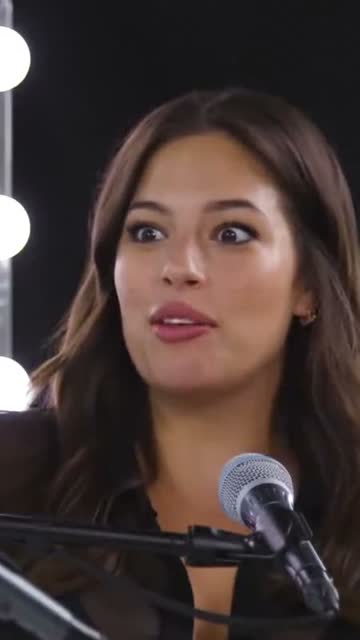
Follow the active speaker, or put both speakers on screen. Watch the real shot below.
The frame goes where the voice is
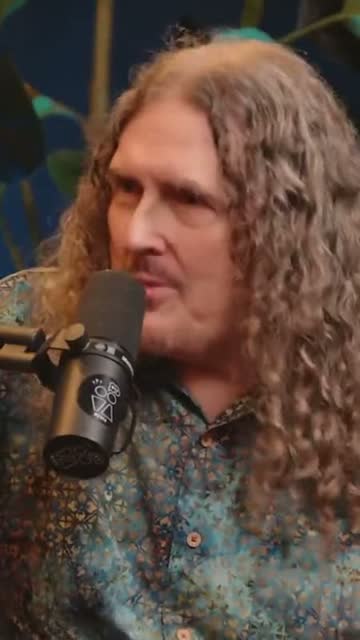
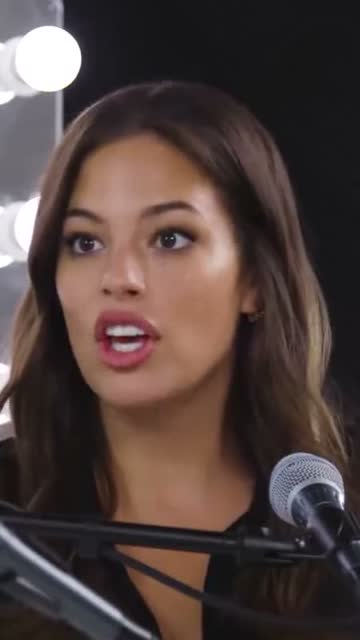
Podsqueeze recognises each speaker by voice and by lip movement, then keeps the vertical frame on whoever is talking. When the conversation moves, the frame moves with it.
Show both people when the answer needs the reaction
Switch a clip to split screen and each speaker gets half of the frame, centred on their face.
Edit the words
Trim the clip while the frame keeps up
Cut a sentence in the transcript and the clip gets shorter; the frame still follows the right person.
- Delete words, the video follows
- Fix a misheard word
- One sentence earlier or later
“Weird Al” Yankovic 12:44
✦ Cut the “um”sSo, um, I talked to him on the phone and I said, listen, I'd like to do a parody of your song. You know, and he said, oh, is it gonna be a song about food? This was the first time Nirvana played Saturday Night Live.
Export
Vertical clips ready for every feed
Download the reframed clips as MP4s for TikTok, Reels and LinkedIn, or schedule them to YouTube Shorts.
- Reframed 9:16 MP4s
- Square versions for feeds
- Scheduling to YouTube Shorts
YouTube Shorts
Off the Record · connected
Mon
Tue
Wed
Thu
Fri
Details
Reframing that respects the picture
Your branding on top
Logo, lower thirds and captions stay in place.
Three frames
9:16, 1:1 and 16:9 from one source.
Music under it
Royalty-free tracks below the voices.
Names on screen
A lower third for each speaker.
Why Podsqueeze
AI reframe vs cropping by hand
| Feature | Podsqueeze | Manual crop |
|---|---|---|
| Finds the active speaker | By hand | |
| Uses voice and lip movement | ||
| Smooth pans or hard cuts | Keyframes | |
| Split screen for two speakers | Build it | |
| Fix the speaker with one drag |
Loved by the people who make the shows
What is AI reframe?
AI reframe, also called auto reframe, takes a wide 16:9 video and crops it into a vertical 9:16 or square 1:1 frame that moves on its own. For podcasts and interviews, the frame needs to follow the person who is speaking, which is harder than following a face: two or three people are on screen and only one is talking.
How Podsqueeze decides who to show
- It listens. The audio is split into speakers.
- It watches the lips. Each face is checked for lip movement while each voice is speaking.
- It matches voice to face. Now it knows which face belongs to which voice.
- It moves the frame. The vertical frame follows the voice, with smooth pans or hard cuts.
- It lets you correct it. Drag a marker onto the right face if it ever gets one wrong.
When to use split screen instead
Reframing to one speaker works for answers and stories. When the reaction matters as much as the words, like a debate, a joke landing or an interview with quick back-and-forth, put both people on screen with split screen.
Tips for videos that reframe well
- Film wide enough that every speaker has room around their face.
- Give each speaker their own microphone if you can; clean audio makes speaker detection easier.
- Avoid people walking out of frame during the conversation.
Why reframe with Podsqueeze
Most auto reframe tools follow faces. Podsqueeze follows voices and lips, which is what conversations need, and gives you split screen, captions and clips in the same place. Try it free on your next episode.
FAQ
AI reframe, answered
Can't find what you're looking for? Our team answers within a day.
What is AI reframe?
AI reframe crops a wide video into a vertical or square frame and moves that frame automatically to follow what matters, here the person who is speaking.
How does Podsqueeze know who is talking?
It combines the voices in the audio with the lip movement of each face in the video, so the frame follows the person actually speaking, not just the biggest face.
What if it follows the wrong person?
Drag the speaker marker onto the right face in the editor, switch to split screen, or ask the assistant to change it.
Can I choose how the camera moves?
Yes. Choose smooth pans or hard cuts between speakers, or fit everyone in the frame.
Which formats can I export?
9:16 for TikTok, Reels and Shorts, 1:1 for feeds, or the original 16:9.
Your wide shots are ready to go vertical
Upload a podcast or interview and get clips that follow the conversation.
Free plan · No credit card · 9:16, 1:1 and 16:9
Related features: