Every episode in Podsqueeze lives in a folder, usually one folder per show. Each folder has its own Personalize AI settings, so the writing style and the spelling fixes you set for one show apply to that show's future episodes only.
Steps
Put an episode in a folder
- Click Convert Audio or Video on your Dashboard.
- Under Select or create a folder, pick an existing folder or type a new name to create one.
- Start the conversion. The episode appears inside that folder on your Dashboard.
To move an episode later, click the folder icon on the episode, choose a folder under "Move this episode to:" (or type a new name to create a folder), and click Move.
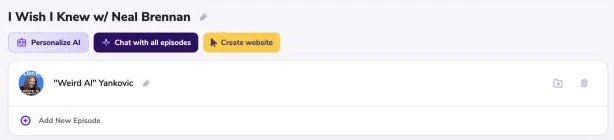
To rename a folder, click the pencil icon next to its name. The trash icon to delete a folder only appears when the folder is empty.
Personalize the AI for a folder
- Open the folder on your Dashboard and click Personalize AI.
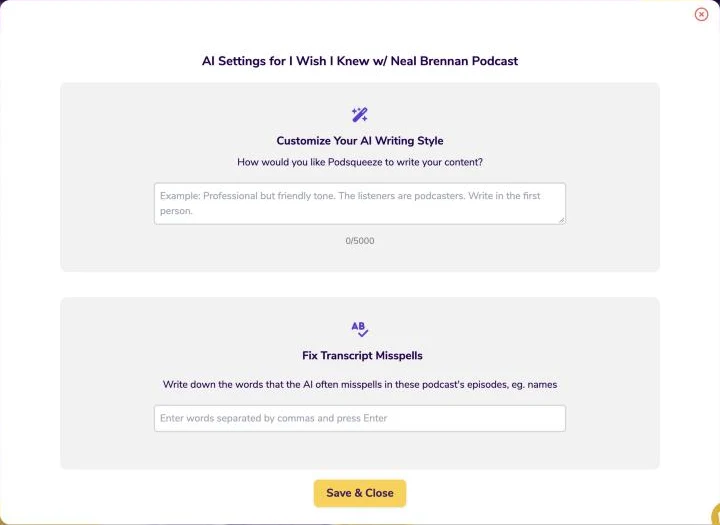
- Under Customize Your AI Writing Style, describe how Podsqueeze should write for this show, for example "Professional but friendly tone. The listeners are podcasters. Write in the first person."
- Under Fix Transcript Misspells, type the words the AI often gets wrong, such as guest names or brand names. Separate several words with commas and press Enter.
- Click Save & Close.
Limits
| Free and Starter | Pro and above | |
|---|---|---|
| Writing style | Up to 25 characters | Up to 5,000 characters |
| Misspelled words | 1 word | No fixed limit |
- The settings apply to episodes you convert after saving. They do not rewrite episodes that are already done. To fix an existing transcript, edit it on the episode's Results Page.
- Settings are per folder. A new folder starts with empty settings.
Good to know
- The same folder buttons give you Chat with all episodes (ask questions across every transcript in the folder) and Create website (a podcast website built from the folder's episodes).
- On the Dashboard you can switch between Folders and Episodes to see your uploads grouped by show or as one list.