Each show folder can have its own podcast website. Click Create website in the folder, then use the website builder to add episodes, set the address and change the look. The site is published at podsqueeze.com/websites/<your-path>.
Steps
- On your Dashboard, open the folder of the show.
- Click Create website. The website builder opens in a new tab.
- Use the builder's menu to edit each part of the site:
- Header: logo and social links.
- Podcast Info Section: Podcast Info, Platform Links (links to the directories where the show is listed) and Podcast Cover.
- Sections: add or remove the Call-to-action section.
- Add Episodes: search your episodes and click Add or Remove for each one. Added episodes can be edited and saved with Save Changes.
- Website URL: type the path under Website URL Path (lowercase letters, numbers and hyphens only) and click Save Path.
- Colors & Styles: Color Styles and Text Fonts.
- Click Save Changes at the bottom of the menu. When there is nothing left to save, the same button becomes View Website.
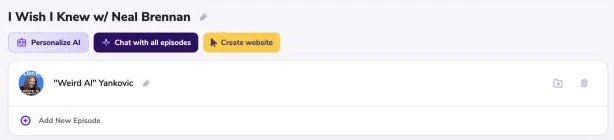
After the website exists, the folder button changes to Customize website, which reopens the builder.
Good to know
- Only episodes you add under Add Episodes appear on the site. New episodes in the folder are not added automatically.
- The Preview URL under Website URL shows the full address before you save it.
- To take the site offline without deleting it, use the Hide website switch ("Unpublish the website") in the builder.
- The website builder is included on all plans. See pricing.
Troubleshooting
- "Failed to create website. Please try again." Refresh the Dashboard and click Create website again.
- The path will not save. Remove spaces, capitals and symbols. Only
a-z,0-9and-are allowed, and the path must be different from the current one before Save Path becomes active.