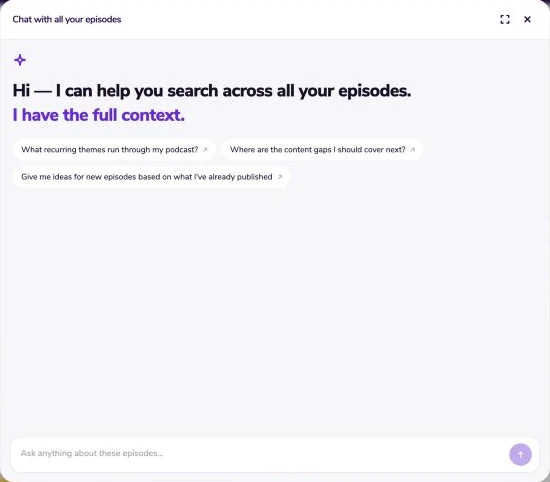
Chat with all episodes opens an AI chat that has every transcript in a folder as context. Use it to compare episodes, find recurring ideas or quotes, and plan new content for the show.
Steps
- Open your Dashboard and go to the folder of the show.
- Click Chat with all episodes.
- Type a question, or pick one of the suggestions:
- "What recurring themes run through my podcast?"
- "Where are the content gaps I should cover next?"
- "Give me ideas for new episodes based on what I've already published"
- Read the answer and keep asking follow-up questions in the same chat. You can expand the window to full size.
What you can ask
- Themes that come up across episodes.
- What different guests said about the same topic.
- The strongest quotes, and which episode each one is from.
- Gaps in what the show has covered so far, and ideas for next episodes.
Limits
- Available on Pro and above. On Free and Starter you can open the chat, but sending a message shows an upgrade prompt. See pricing.
- The chat only sees the episodes inside that folder. To include an episode, move it into the folder first (see folders).
- For questions about a single episode, use the Content Assistant on that episode's Results Page instead.
Troubleshooting
- An episode seems to be missing from the answers. Check that the episode finished processing and that it is in this folder, not in another one.