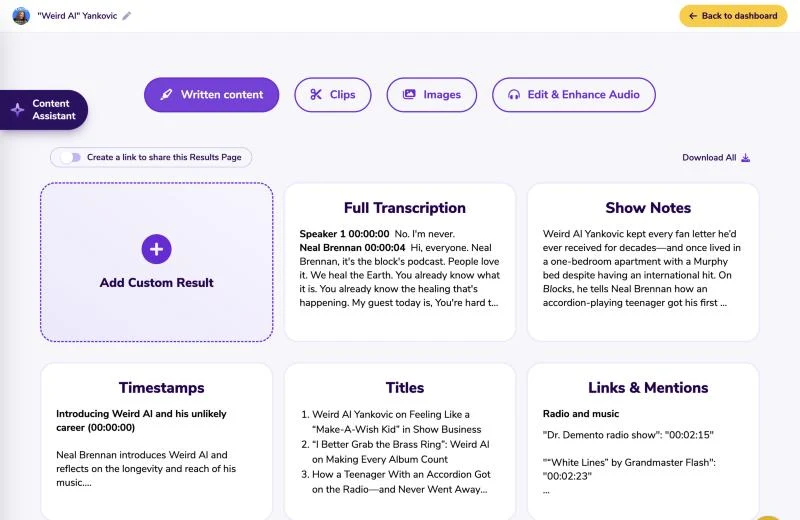
To share an episode's results, turn on Create a link to share this Results Page on the episode's Results Page. You get a public link that anyone can open, without a Podsqueeze account.
Steps
- Open the episode's Results Page.
- Click the switch next to Create a link to share this Results Page.
- The text changes to Public at podsqueeze.com/results/… with the link.
- Click the copy icon next to the link and paste it wherever you need it.
- To stop sharing, click the switch again. The link stops working.
What people see
- The episode's written results: transcript, show notes, timestamps, titles and the other result cards.
- They can read and copy the content, but they can't edit it.
- They don't need to sign in or have an account.
Good to know
- Anyone with the link can open the page, so treat it like any public link. Turn the switch off when you no longer need it.
- To give someone access to edit your episodes and clips, invite them to your team instead. See Invite your team.
- To send files instead of a link, use Download All. See Download all content.