Click Convert Audio or Video, choose Episode Link, paste the YouTube link and click Continue. Podsqueeze downloads the video and processes it like any other episode, so you get the transcript, an SRT file, written content and video clips.
Steps
-
On your Dashboard, click Convert Audio or Video.
-
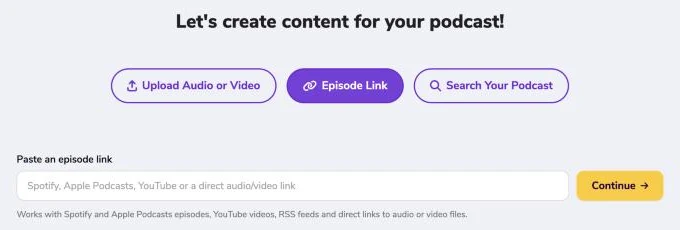
Choose Episode Link.
-
Paste the link to the YouTube video in "Paste an episode link" and click Continue.
-
Check the video Podsqueeze found ("We found this video"), set the Episode Language to the language spoken in the video, pick a folder, and click Continue again.
-
Wait while Podsqueeze downloads the video ("Downloading video..." with a percentage). You can click Cancel to stop the download.
-
When processing is done, open the video's Results Page and click the Full Transcription card to read or download the transcript. See Download a transcript.
Limits
- Links that work: youtube.com/watch links, youtu.be short links, YouTube Shorts (/shorts/), live recordings (/live/), embed links, and links from m.youtube.com and music.youtube.com. Paste one video at a time.
- Minutes: the video uses as many minutes as it is long, rounded up to the next minute.
- Free plan: one YouTube video. After that, YouTube conversions need a paid plan. See Pricing.
- The transcript is created by Podsqueeze, not copied from YouTube's captions, so it works for videos without captions and includes speaker names.
Troubleshooting
- "This YouTube video could not be downloaded. Try uploading the file directly." YouTube blocked the download, usually because the video is private or restricted. If it is your video, download it from YouTube Studio and upload the file with Upload Audio or Video.
- "This doesn't look like a valid link." or "Invalid YouTube URL. Please paste a valid YouTube video link." Copy the address of the video page itself (it contains
watch?v=or starts withyoutu.be/), not a channel or playlist page. - The download stops or times out. Try again in a few minutes. If it keeps failing, upload the file directly.