Click Schedule on a clip, connect your YouTube channel once, and choose a title and a time. Podsqueeze uploads the clip to your channel as private, and YouTube publishes it at the time you set.
Steps
- In the Clips tab, click Schedule on the clip (or Schedule at the top of the clip editor).
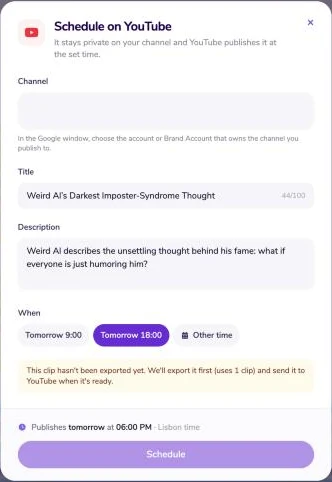
- The Schedule on YouTube window opens. The first time, click Connect your YouTube channel and sign in in the Google window. Choose the account or Brand Account that owns the channel you publish to.
- Pick the Channel if you connected more than one.
- Write the Title (up to 100 characters) and, optionally, the Description.
- Under When, pick a quick option such as Tomorrow 9:00 or Tomorrow 18:00, or Other time. The window shows the time in your time zone ("Publishes tomorrow at 06:00 PM · Lisbon time").
- Click Schedule.
- The clip card now shows Scheduled for … with a View on YouTube link.
Limits
- Exports count. If the clip hasn't been exported yet, Podsqueeze exports it first, which uses 1 clip from your plan, and sends it to YouTube when it's ready. Keep the window open until it's sent. A clip that is already exported uses nothing extra.
- Shorts rules: YouTube shows a video as a Short only if it is vertical or square and up to 3 minutes long. A 16:9 clip or a longer one is published as a regular video, and the window warns you.
- Time: at least 15 minutes from now and at most 6 months ahead.
- YouTube only. For TikTok, Instagram Reels or LinkedIn, click Download on the exported clip and upload the MP4 yourself.
- Free plan exports have a watermark, so a scheduled clip from a Free account has it too.
Good to know
- Until the publish time, the video is private on your channel.
- To change or cancel a scheduled clip, open it with View on YouTube and edit it in YouTube Studio.
- Scheduling the same clip to the same channel at the same time twice doesn't upload it twice.
Troubleshooting
- "Your browser blocked the Google window." Allow pop-ups for podsqueeze.com and try again.
- "That Google account doesn't have a YouTube channel." Connect again and choose the account or Brand Account that owns the channel.
- "Your YouTube connection expired. Reconnect your channel." Click connect again and sign in with the same account.