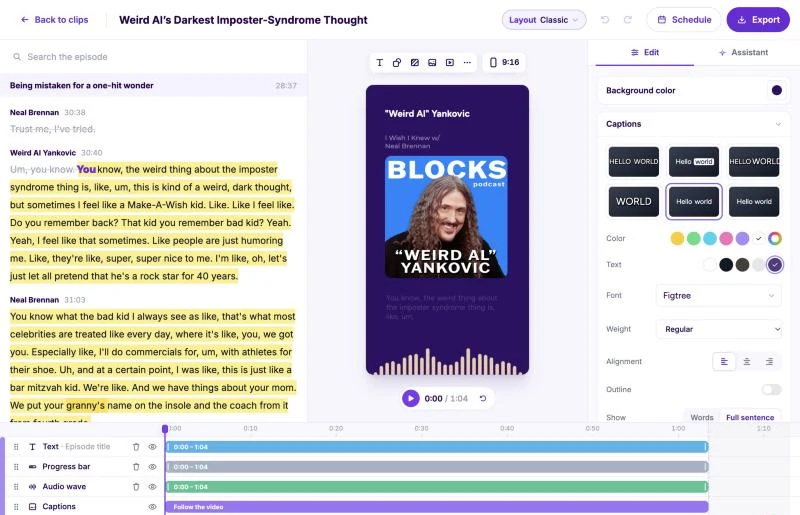
Click Edit on a clip in the Clips tab. The editor shows the clip's transcript on the left, the preview in the middle and the settings on the right. Delete words in the transcript to cut them from the video, change the design in the Edit tab, or ask the Assistant for a change in your own words.
Steps
- In the Clips tab, click Edit on the clip.
- Change the cut in the transcript. The clip's words are highlighted. Select words and click Cut to remove them, or select words around the clip and click Include to add them. Use Search the episode to find a sentence.
- Fix a misheard word. Select it, click Edit, type the correction and click Save correction. The captions follow. Hide from captions keeps a word audible but removes it from the captions.
- Change the design in the Edit tab: background color, captions (style, color, font, weight, alignment, outline, words per caption), text, images, logo, lower thirds and the timeline below the preview.
- Change the format and camera (video episodes) in Framing: Format 9:16, 1:1 or 16:9; Camera Auto (follows whoever is speaking) or Split (two speakers one above the other); Transition Smooth or Hard cut. If the camera shows the wrong person, drag that speaker's marker onto the right face.
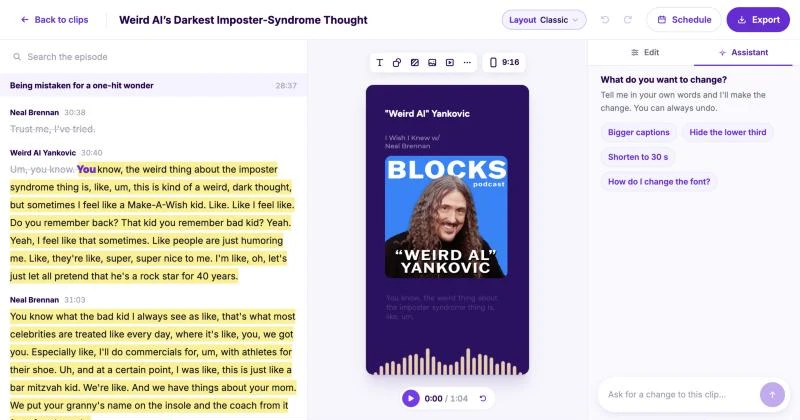
- Ask the assistant (Pro): open the Assistant tab and type in Ask for a change to this clip…, for example Bigger captions, Hide the lower third or Shorten to 30 s. Each change is listed and can be undone.
- Click Export to make the MP4, or Schedule to send it to YouTube. Click Back to clips when you are done. Changes are saved automatically.
Limits
| Feature | Free and Starter | Pro and above |
|---|---|---|
| Cut and correct in the transcript, captions, layout, format, camera | Yes | Yes |
| Caption styles | Classic and Reveal | All, including Highlight, Pop, Single word and Minimal |
| Caption fonts | Montserrat, Inter, Poppins, Roboto, Figtree | All fonts, plus your own |
| Editing assistant | No | Yes |
| Background music | No | Yes |
| Save your own layouts (Save as layout) | No (preset layouts only) | Yes |
| Watermark on export | Free only | No |
On Free and Starter, Pro options show a Pro badge. The preview shows exactly what will be exported. See /pricing/.
Good to know
- Editing is free. Each Export uses one clip from your plan, and so does exporting again after more edits. See Clips per plan.
- Undo and redo work with ⌘Z and ⇧⌘Z.
- The editor works best on a computer. On a phone you can view, export and download clips from the clips page.
- Layout at the top lets you switch the clip to another layout or Reset to original.
Troubleshooting
- "Preparing auto camera". For a new video episode the camera takes about a minute. You can keep editing meanwhile.
- "This clip was changed somewhere else". The clip was also changed in another tab or by a teammate. The editor now shows the latest version.