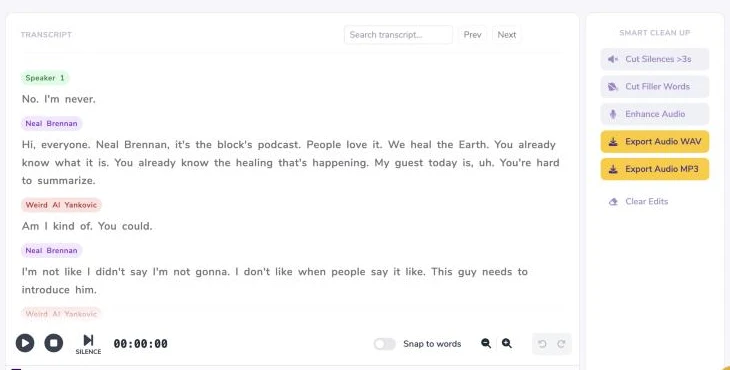
Open the episode's Edit & Enhance Audio tab. Use Enhance Audio to improve the sound with one click, Cut Silences >3s and Cut Filler Words to tighten the episode, then export it with Export Audio WAV or Export Audio MP3.
Steps
- Open the episode's Results Page and click the Edit & Enhance Audio tab. The episode's transcript, split by speaker, appears next to the player.
- Under SMART CLEAN UP, choose what to do:
- Cut Silences >3s: finds and removes pauses of 3 seconds or more. The button then shows how many silences were removed.
- Cut Filler Words: removes "uh", "um", "ah", "er", "eh", "hm", "hmm", "mm", "mmm", "huh", "ooh" and "ahh".
- Enhance Audio: applies AI enhancement to improve the sound quality. Wait until the button shows Audio Enhanced.
- Listen in the player. Use the search box to jump to a word in the transcript (Prev and Next move between matches).
- To undo the cuts, click Clear Edits.
- Click Export Audio WAV or Export Audio MP3. The file downloads when it's ready.
Limits
- Starter and above. Audio Enhancement and the Podcast Audio Editor are not part of the Free plan. See /pricing/.
- Silence cutting only looks at pauses of 3 seconds or longer.
Good to know
- Cuts and enhancement work together: cut silences and filler words, enhance, then export once to get one clean file.
- Enhancement improves the recording you have; it can't fully rescue audio that is heavily distorted.
Troubleshooting
- The buttons are greyed out. The audio is still loading. Wait until the waveform appears.
- Enhancement fails. Try again in a few minutes.